
Your library on every screen
TellyForge setup and sync guide
Set up your TV accounts and favourites on a computer, then bring them to your other screens with Google Drive Secure Sync. This guide takes you through the first setup, device approval and everyday viewing handoffs.
Screens use demonstration data. Follow the prompts shown on your own device.
Step 1
Set up your first computer
Open TellyForge on Windows. Add your own TV accounts under Settings > Sources, then save the channels, movies and series you want in your library.
To save several live channels at once, open Settings > Live TV > Add a list. Paste comma-separated channel names, review the matches and confirm the channels to save.
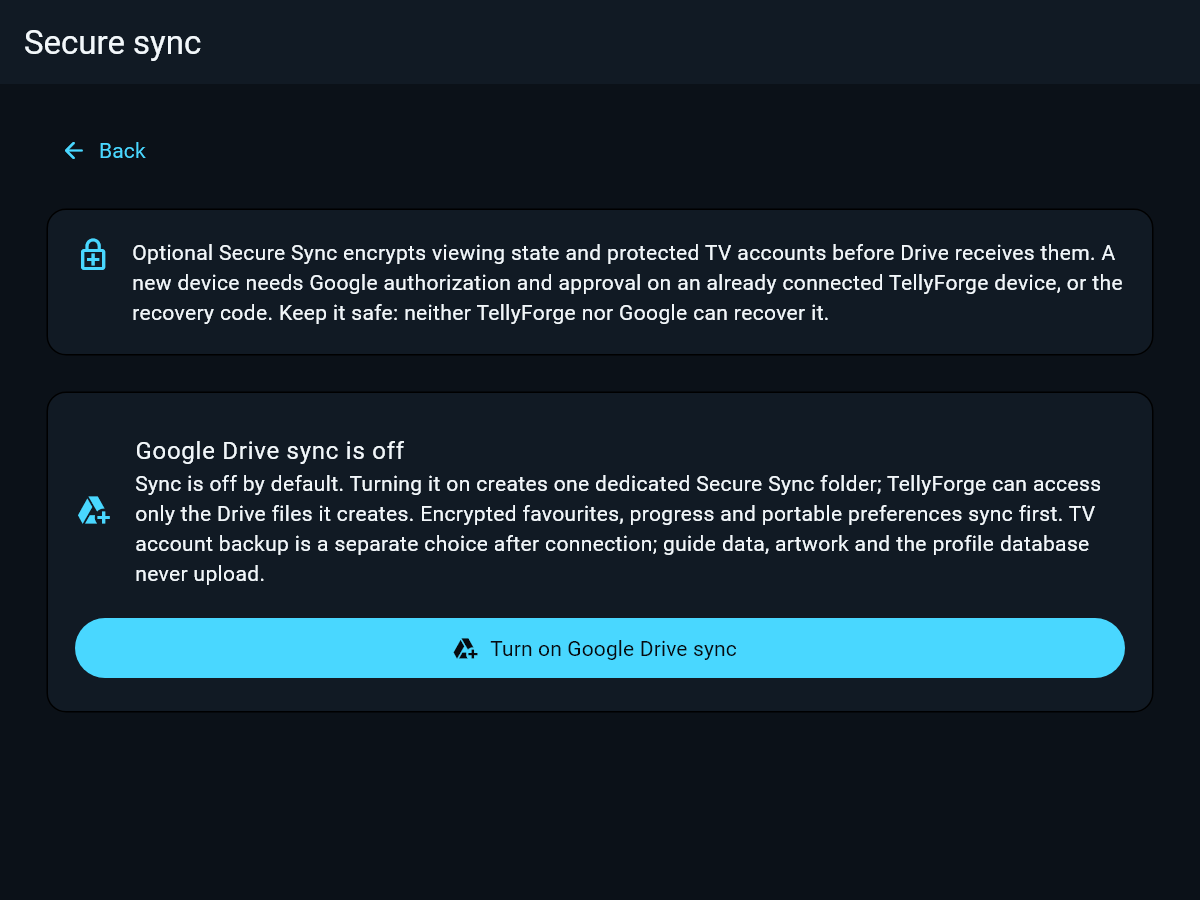
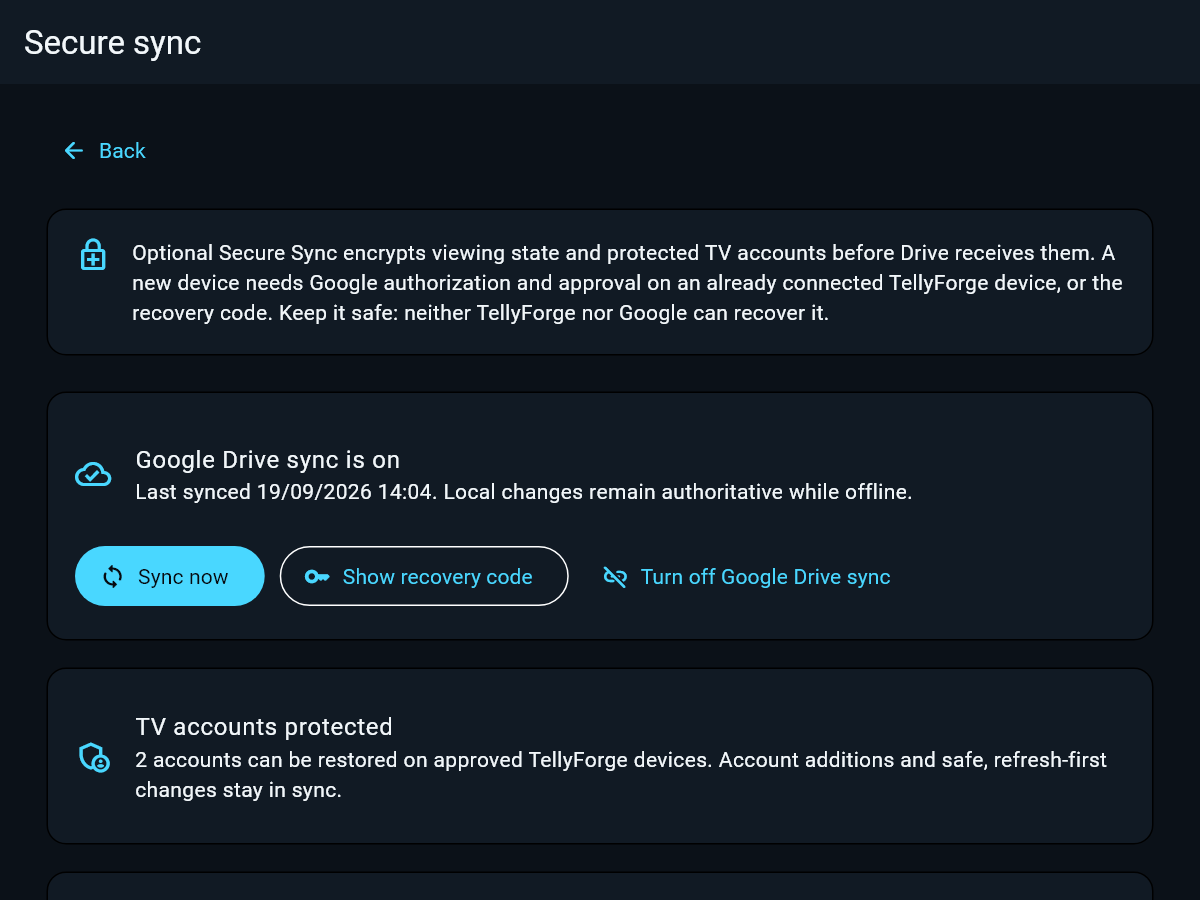
Open Settings > Backup & sync > Open backup & sync > Google Drive sync. Choose Turn on Google Drive sync and complete Google sign-in.
Finish setting up this first device before joining another. Save the recovery code privately in your password manager. It can unlock your encrypted setup if you lose access to your connected devices.
Step 2
Protect your TV accounts
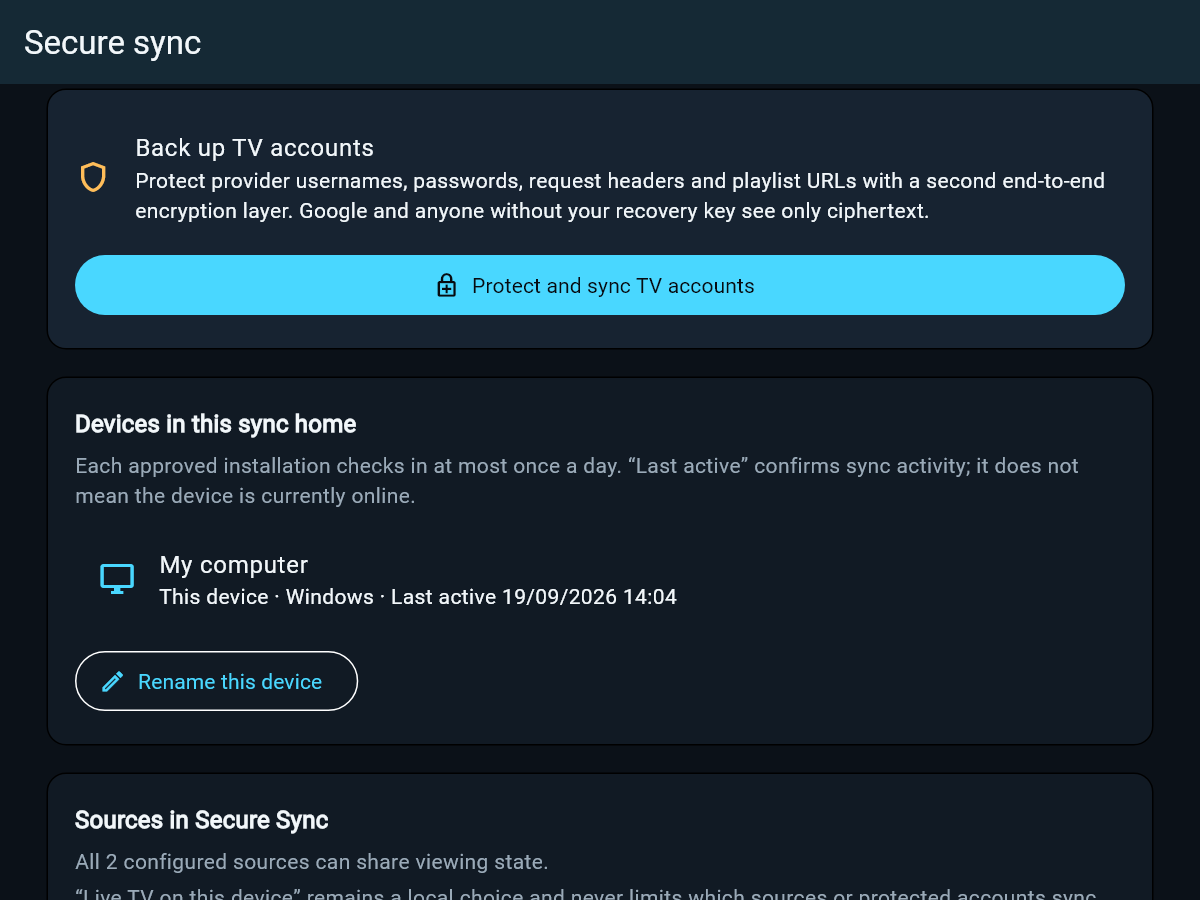
Once Google Drive sync is on, choose Protect and sync TV accounts. This is the step that lets your other approved devices restore your provider logins without entering them again.
Wait for TV accounts protected and check the number of protected accounts. If you use a main account and a backup account, protect both.
Choose Sync now and wait for the Last synced time to update. Keep this computer available while you connect your next device.
Step 3
Connect your next device
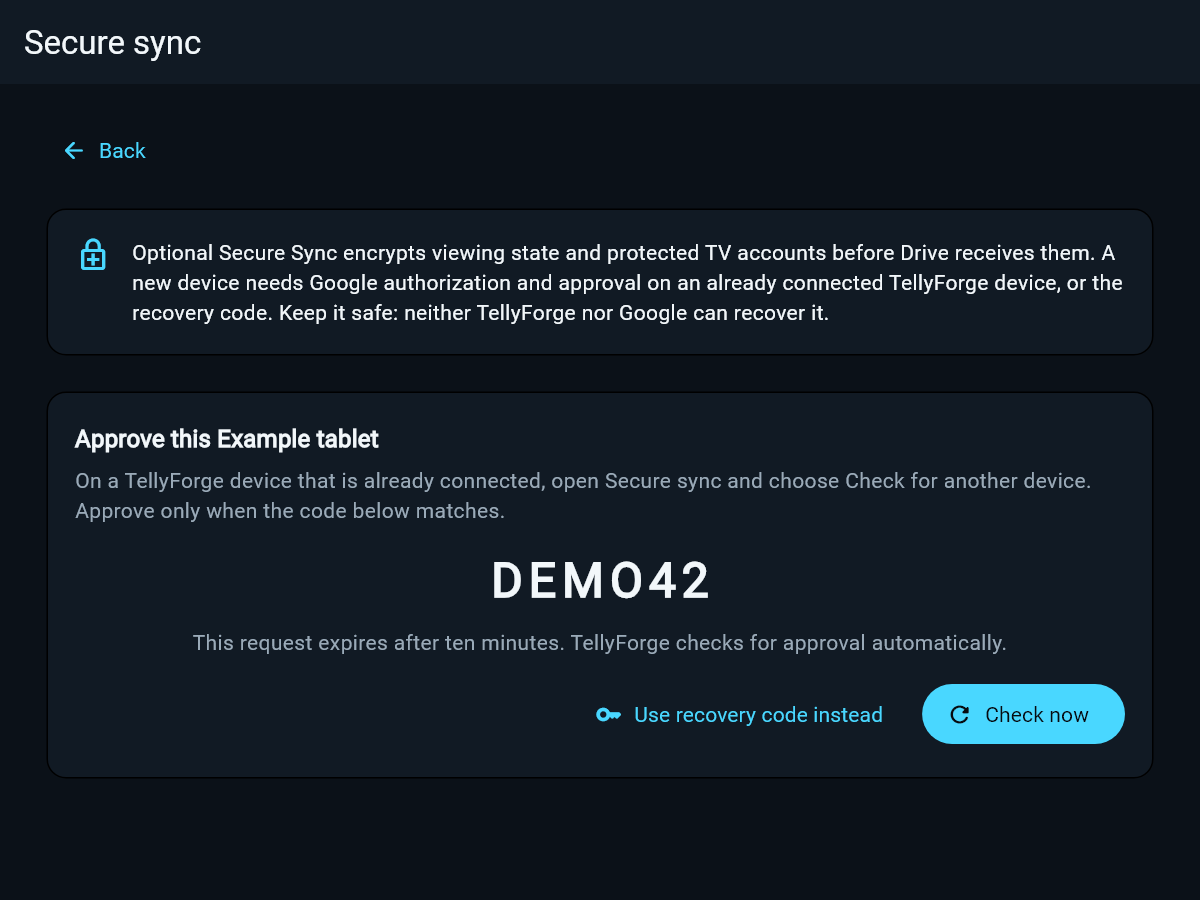
Install TellyForge on your phone, tablet or Fire TV. On a fresh installation, choose Set up or restore > Restore an existing TellyForge setup > Google Drive sync. If the app is already configured, use Settings > Backup & sync instead.
Sign in to the same Google account used on your first device. On a TV, follow the Google web address and device code shown on screen. That Google sign-in code is different from the TellyForge approval code below.
Leave the TellyForge approval screen open. It shows a short comparison code and checks for approval automatically. DEMO42 in this guide is only an example.
Step 4
Approve the new device
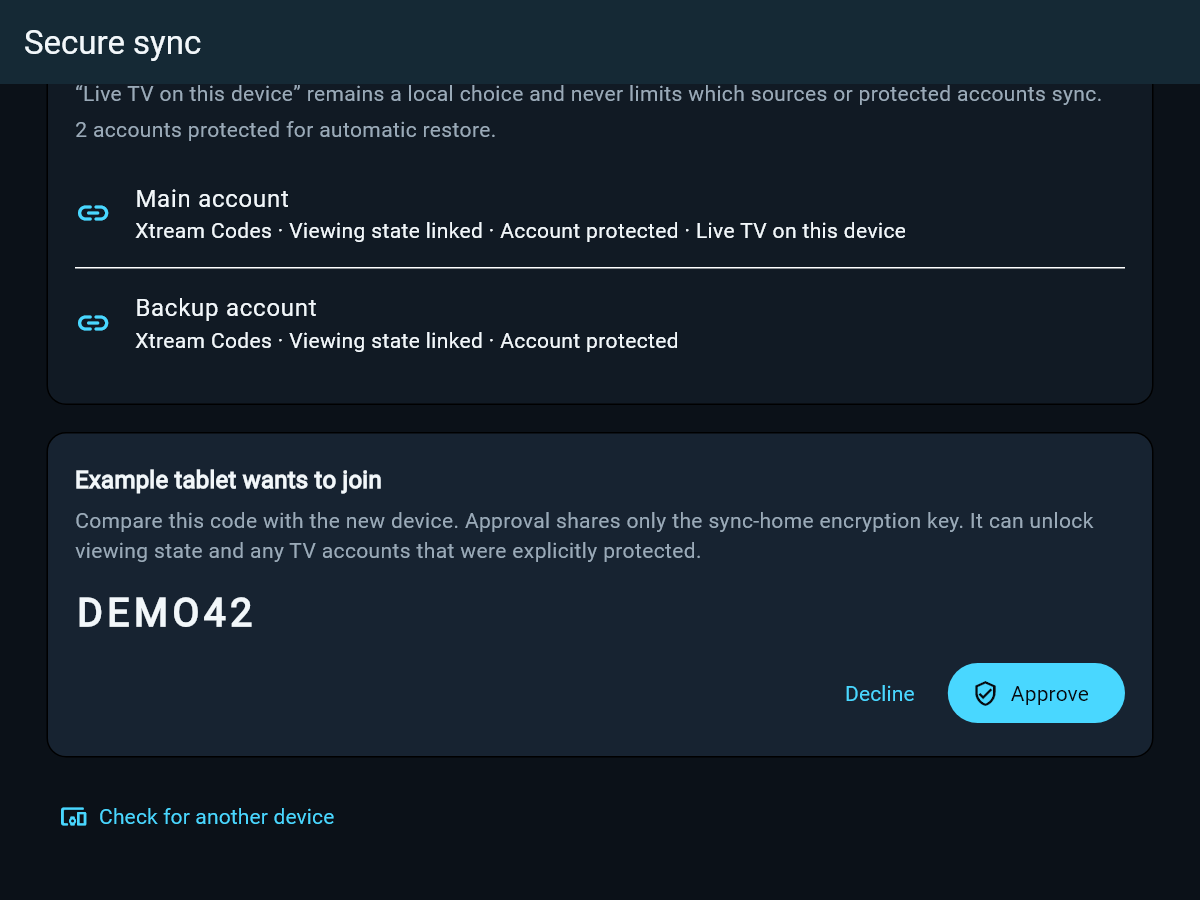
On the connected computer, open Google Drive sync and choose Check for another device.
Check the device name and compare the code with the new device. Choose Approve only when the codes match, then confirm Approve device.
The new device should show Google Drive sync is on. Continue to Sources if offered and allow its local catalogue to load. Your protected accounts, favourites and viewing progress can now follow you.
Repeat for your other devices. You can approve from any already connected TellyForge device, or choose Use recovery code instead on the new device.
Step 5
Pick up watching on another screen
Pause or stop on the first device, then open TellyForge on the next device and choose Resume. Both devices must be online with Google Drive sync on, in the same TellyForge setup. You do not normally need to visit Settings.
TellyForge saves the position locally before sending it. Finishing a movie or episode sends its watched state, even during autoplay. Opening the receiving app requests fresh state; Resume briefly checks again. Each device still needs the matching title in its local catalogue.
Allow the first device a few seconds online to send. If a change has not arrived, use Sync now on the sender, then the receiver, and check the title. Stop the first stream before starting the second if your provider limits simultaneous streams.
Everyday questions
What follows me
Saved channels, movie and series favourites, viewing progress and supported portable preferences. Provider logins restore when you explicitly enable Protect and sync TV accounts.
Will my artwork and guide appear immediately
Each device downloads its own catalogue, guide and artwork and keeps local caches. On the first setup, allow these to finish loading; they are separate from your synced library.
What if I am offline
Your viewing changes stay saved locally and retry while the app is open. Resume uses local progress if its fresh-state check fails or takes more than two seconds. Another device cannot receive unsent changes until the sender reconnects. Streaming still needs a working provider connection.
Does it sync after watching or when I exit
Yes. Pause, Stop, completion and Mark watched request a prompt upload after the local save, without waiting for catalogue work or playback idle. Backgrounding and a normal exit attempt a final upload within eight seconds. Force-stop, power loss or immediate operating-system suspension can interrupt it; saved changes retry next time.
How often does viewing progress sync
During continuous playback, local positions save after about 15 seconds of movement. Cloud checkpoints coalesce at a 15-minute cadence; pausing or finishing bypasses that wait. Opening or returning to the app requests a pull, and Resume checks for up to two seconds. These timings schedule attempts, not guaranteed delivery. TellyForge does not run a sync service after closing.
What does Last synced mean
Last synced records a successful receiving cycle, not every small progress upload. It does not prove another device has received your change. For confirmation, use Sync now on the sending device, then on the receiving device, and check the watched state or position.
What if a change has not arrived
Check both devices use the same Google account and show Google Drive sync is on. Sync the device with your latest changes first, then the receiving device. Check the Last synced times. Read any error before retrying.
What if Google rejects the TV code
Use the current code and web address displayed on the TV. Check letters and digits carefully. An expired code needs a fresh sign-in attempt.
Can a friend use my sync setup
Each person should create their own setup with their own Google account and TV accounts. Approving a device gives it access to your synced library and any protected provider credentials.